Overview
Kerio Control includes a Watchdog feature that continuously monitors all key product services and automatically restores full functionality if any irregularity is detected. By auto-restarting failing components and capturing diagnostic data, Watchdog reduces downtime and removes the need for an on-site reboot when a service becomes unresponsive.
Watchdog can now be enabled in two ways:
- GUI control — available from Kerio Control 9.6.1, directly in the web administration interface (no SSH required).
- CLI control — available since Kerio Control 9.4.5, for older versions or where command-line management is preferred.
In This Article
- How Watchdog Works
- Enabling and Controlling Watchdog
- Services Monitored
- Locating and Downloading Crash Dumps
- Benefits of Using Watchdog
- FAQ
How Watchdog Works
The Watchdog feature continuously monitors the operational status of key Kerio Control services. When it detects a service failure or system issue, it:
- Automatically restarts the affected services
- Creates a crash dump in the
/var/crash/winroute/folder for later analysis - Restores network functionality without manual intervention
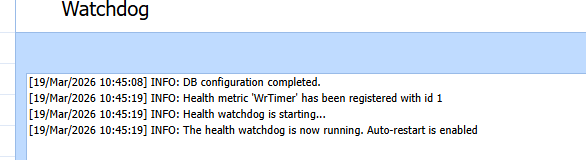
This significantly reduces downtime and eliminates the need for on-site visits to physically restart hardware.
Enabling and Controlling Watchdog
Two methods are available depending on your version of Kerio Control. If you are running 9.6.1 or later, the GUI method is recommended.
Method 1 — GUI Control (New in Kerio Control 9.6.1)
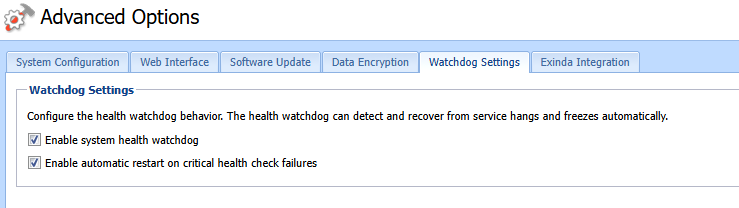
Starting with Kerio Control 9.6.1, Watchdog can be enabled and managed directly from the web administration interface — no SSH or command-line access required.
- Log in to the Kerio Control web administration interface (Webadmin).
- Navigate to Configuration > Advanced Options.
- Click the Watchdog Settings tab.
- Enable either or both options as required:
- Enable system health watchdog — activates monitoring of all key Kerio Control services.
- Enable automatic restart on critical health check failures — instructs Watchdog to automatically restart services when a failure is detected.
- Click Apply to save.
Both checkboxes can be enabled independently. For full automated recovery, enable both.
Method 2 — CLI (Available since Kerio Control 9.4.5)
For versions prior to 9.6.1 — or where CLI access is preferred — Watchdog can be enabled via the command line. The Watchdog feature is disabled by default in these versions.
Step 1 — Enable SSH Access
To use the command line, SSH access must first be enabled. Full instructions are in Accessing Kerio Control's Shell Using SSH.
- Log in to the Kerio Control web administration interface.
- Hold the SHIFT key and click Status > System Health in the left menu.
- While holding SHIFT, click the Enable SSH option that appears.
- Confirm to enable SSH access.
- Important: Add a traffic rule to allow SSH (TCP port 22) from your admin PC to the firewall — without this, SSH will not work.
- Connect using an SSH client (for example, PuTTY on Windows, or Terminal on macOS/Linux).
Tip: The SHIFT-key step is essential and frequently missed by new users.
Step 2 — Enable Watchdog
From the SSH session, run the following command to enable Watchdog:
/opt/kerio/winroute/tinydbclient "update AutoRecoveryWatchdog set AutoRestart=1"
Then restart the Kerio Control service for the change to take effect:
/etc/boxinit.d/60winroute restart
Note: The restart step is required. Without it, the Watchdog setting change will not become active.
For background on direct configuration changes via tinydbclient, see Modifying Configuration Parameters in Kerio Control.
Services Monitored
Watchdog monitors all key Kerio Control services and automatically restores full functionality when irregularities are detected:
| Service | What It Monitors |
|---|---|
| Network Connection Services | Ensures internet connectivity remains active; prevents frozen states with no internet access. |
| Firewall Services | Monitors core security services that enforce traffic rules and provide network protection. |
| VPN Services | Watches services related to Virtual Private Network connections. |
| Intrusion Prevention System (IPS) | Monitors services responsible for detecting and preventing network attacks. |
Locating and Downloading Crash Dumps
When Watchdog detects a critical failure, it creates crash dump files for later analysis.
- Directory:
/var/crash/winroute/ - Action: Download all files in this folder and provide them to GFI Support for troubleshooting.
For deeper guidance on collecting and submitting crash data, see Analyzing Kerio Control crashes.
Benefits of Using Watchdog
The primary benefit of Watchdog is preventing scenarios where a device becomes unresponsive and requires a manual reboot. Specific advantages include:
| Benefit | Description |
|---|---|
| Improved System Reliability | Automatically recovers from service failures without manual intervention. |
| Reduced Downtime | Minimises network interruptions by quickly restarting affected services. |
| Enhanced Troubleshooting | Crash dumps enable root-cause analysis after incidents. |
| Peace of Mind | Provides automated safeguards for your network infrastructure. |
| GUI Accessibility (New in 9.6.1) | Enable and monitor Watchdog via Configuration > Advanced Options > Watchdog Settings — no SSH required. |
| Granular Control (New in 9.6.1) | Two independent controls — enable monitoring and auto-restart separately, based on your operational preference. |
Together with active resource monitoring, alert configuration, and standard operational best practices, Watchdog helps administrators maintain optimum stability and performance from Kerio Control.
FAQ
Q1: Which version do I need for the GUI Watchdog controls?
A1: GUI control of Watchdog is available from Kerio Control 9.6.1 onwards. Earlier versions (from 9.4.5) support Watchdog only via the CLI method described above.
Q2: Do I need to enable both Watchdog checkboxes in the GUI?
A2: No — both checkboxes are independent. Enable system health watchdog activates monitoring only; Enable automatic restart on critical health check failures adds automatic recovery on top. For fully automated recovery, enable both.
Q3: I enabled Watchdog via the CLI, but nothing seems to happen. What did I miss?
A3: Most likely the service restart step. After running the tinydbclient update, you must run /etc/boxinit.d/60winroute restart for the change to become active. Without the restart, the new setting is stored but not applied.
Ciprian Nastase
Comments