Overview
This guide covers the steps to reset a Kerio Control appliance's connection to GFI AppManager.
This procedure should be applied when clicking Register in AppManager from Kerio Control's WebUI leads to GFI AppManager's dashboard instead of the registration wizard, when the Register in AppManager button has disappeared, or when Kerio Control cannot be added to GFI AppManager.
Another scenario where this is applicable is when you migrate the appliance from one server to another and you see the following error in your logs or when clicking Register in AppManager:
Unable to contact AppManager: appliance does not have a valid license or license check failed

In This Article
- Prerequisites
- Preferred Method — Reset Connection via WebUI (Kerio Control 9.6.1+)
- Alternate Method — Via SSH
- Alternate Method — Via Console
- Fallback Method
- Related Articles
Prerequisites
Before proceeding with any of the methods below, please verify the following:
- The GFIAgent service is running, as per the guidelines in the article: Resolving Connectivity Issues Between GFI AppManager and KerioControl.
- The DNS server used resolves
*.gfi.comdomains. The easiest way to do this is to add8.8.8.8as the first DNS server to all the Internet Interfaces used. - The firewall has full access to the Internet with the traffic rules. The easiest way to ensure that is to add a new temporary traffic rule on top of all the other rules with Source: Firewall, Destination: Internet Interfaces, Services: Any, Traffic Inspector: None.
Preferred Method — Reset Connection via WebUI (Kerio Control 9.6.1+)
Starting with Kerio Control 9.6.1, you can reset the AppManager connection directly from the administration interface without needing SSH or console access.
- Log in to the Kerio Control administration interface.
- Navigate to Configuration > Remote Services
- In the GFI AppManager settings section, click the Reset Connection button.
- Wait for the connection to reset. Once complete, you should be able to re-register the appliance in AppManager.
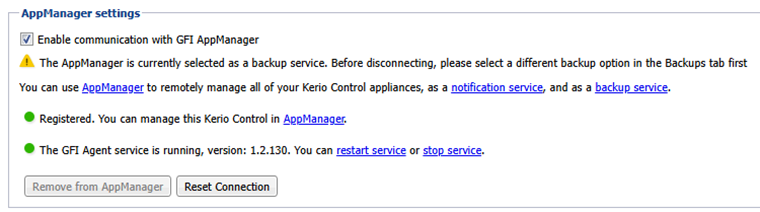
Note: If the Reset Connection button is not visible, your Kerio Control version may be older than 9.6.1. In that case, use one of the alternate methods below.
Alternate Method — Via SSH
If the WebUI method is not available (Kerio Control versions prior to 9.6.1) or does not resolve the issue, you can reset the connection via SSH.
-
Access Kerio Control's shell using SSH.
Note: In some cases, the agent installation may fail due to a read-only filesystem. Run the following command before proceeding:
mount -o rw,remount
-
Navigate to the Kerio Control directory and back up the configuration file:
cd /opt/kerio/winroute/
cp winroute.cfg /tmp/
-
Run the following commands one by one to clear the AppManager registration data:
/opt/kerio/winroute/tinydbclient "update AppManager set ApplianceId=''"
/opt/kerio/winroute/tinydbclient "update AppManager set RegistrationUrl=''"
/opt/kerio/winroute/tinydbclient "update AppManager set Name=''"
/opt/kerio/winroute/tinydbclient "update AppManager set Password=''"
-
Reinstall the GFIAgent on the appliance by running the following commands one by one:
/etc/boxinit.d/70gfiagent stop

/usr/local/gfiagent/GFIAgentInstaller kerio-control /var/winroute https://appmanager.gfi.com/1.2.latest/linux-amd64/

ps -ef | grep "GFIAgent"
After performing the above steps, the next attempt to register the appliance in AppManager should be successful.
Alternate Method — Via Console
If the SSH method does not work, you can follow these steps which require console access.
-
From the appliance local network, access the console by pressing Alt+F2.
Warning: If you are on the console from outside the local network (e.g., via VPN or external SSH), running these commands may break your connectivity to the console.
- Stop the agent and winroute services:
/etc/boxinit.d/70gfiagent stop
/etc/boxinit.d/60winroute stop
- Remount the filesystem as read-write:
mount -o rw,remount /
- Remove the appliance data:
rm -r /var/gfiagent/appliances/*
- Empty the
ApplianceId,Name,Password, andRegistrationUrlvariables in theAppManagertable in/var/winroute/winroute.cfg. - Reinstall the agent:
/usr/local/gfiagent/GFIAgentInstaller kerio-control /var/winroute https://appmanager.gfi.com/1.2.latest/linux-amd64/
- Start the agent and winroute services:
/etc/boxinit.d/70gfiagent start
/etc/boxinit.d/60winroute start
- Verify the GFIAgent service is running:
ps -ef | grep "GFIAgent"
After performing the above steps, the next attempt to register the appliance in AppManager should be successful.
Fallback Method
If the issue is initially adding the appliance to AppManager and the above methods don't help, this can indicate an environmental issue. In such a case, you can try installing the appliance on a new machine and loading the backup settings. You should then be able to add the appliance to AppManager without any problems.
Ciprian Nastase
Comments